Tips for turning photos into great pixel art | Pixel count, colors and choosing photos
For clean pixel art, convert a photo with a large subject at 32–64 pixels wide and about 8–16 colors. Fewer pixels give a retro game look; more pixels look closer to the photo.
Pixel count guide
| Pixels across | Look | Good for |
|---|---|---|
| 16–32 | Retro game style | Icons, stickers, keychains |
| 32–64 | Shapes and expressions come through | Portraits of pets and people |
| 64–128 | Close to the photo | Landscapes, framed pieces |
Photos that work well
- The face or subject fills at least half the frame
- Bright and in focus
- A clean background (a plain wall, the sky, etc.)
Start with fewer colors
Too many colors make the pixels look grainy. Convert with 8–16 colors first, and add more if important parts like the eyes or mouth get lost. For illustrations, turn on “Illustration mode” to get cleaner blocks of color.
Turning pixel art into fuse beads
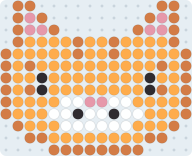
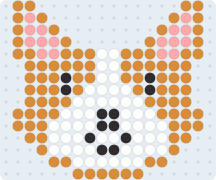
Make each pixel one bead and your pixel art becomes a fuse bead pattern as is. With 2.6 mm beads, 48 pixels across comes out at about 12.5 cm.
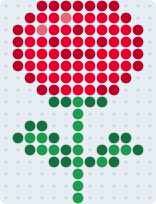
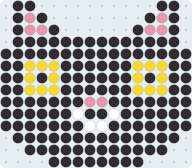
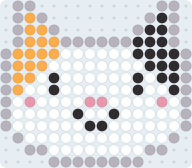
Try one of these patterns
FAQ
Can I post my pixel art on social media?
Pixel art made from photos you took yourself, or from images you hold the rights to, is yours to use freely. For images of other people's work, such as characters, you need permission from the rights holder.